
Estimatrix guidesExporting your BOQ: Excel, A4 PDF, e-GP schedule, branding and letterhead
Workbook, client BOQ, blank quotation and e-GP presets; an A4 PDF with cover, title block and QR verification; your letterhead and signatures; and which file to send to whom.
By Muhammad Sarowar Hossain, Founder & CEOPublished 24 October 2026Updated 24 November 20266 min read
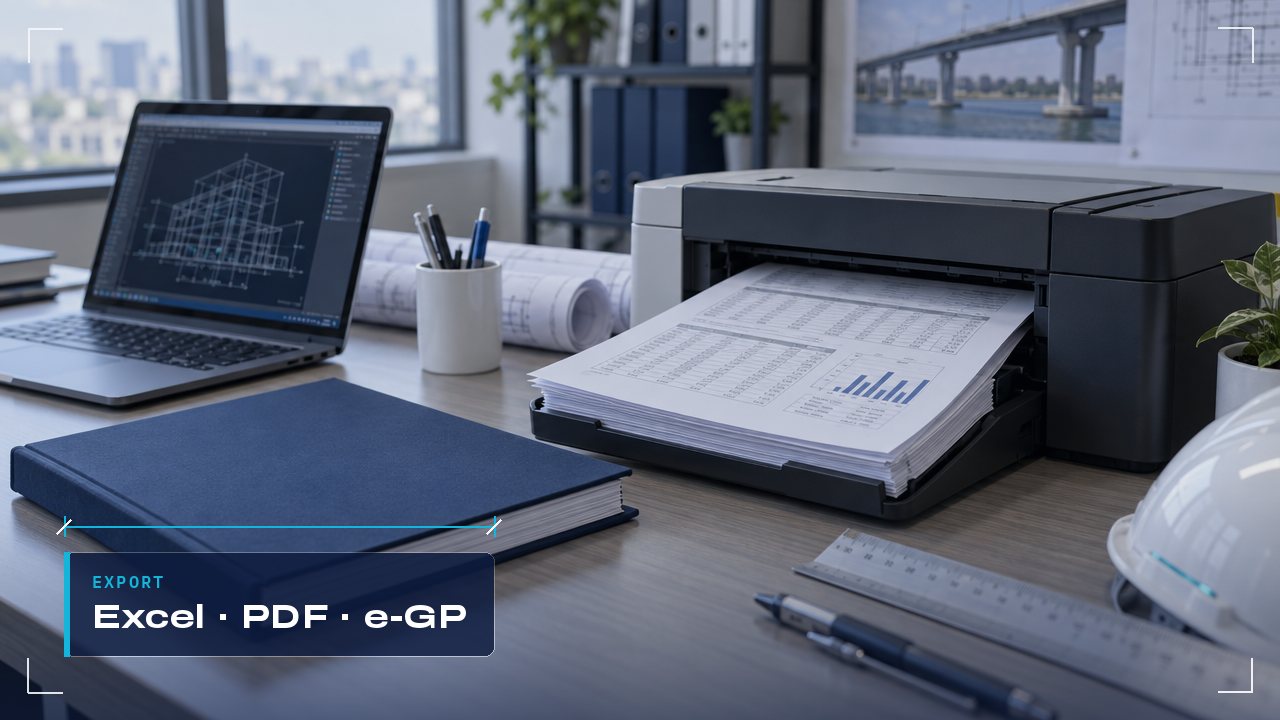
A BOQ is read by people with different needs. The client wants the bill, the subcontractor wants the quantities, the tender portal wants a fixed layout, and your own team wants every sheet. Sending one file to all of them either shows too much or too little.
The Export menu turns the workbook into the right document for each.
Presets
| Preset | Contents |
|---|---|
| Workbook | Every sheet: overview, BOQ, measurement, BBS, rate analysis, requisition, floor or phase budget |
| Client BOQ | Overview and priced BOQ only, without analyses, requisition or PWD item numbers |
| Blank Quotation | Items and quantities with empty rate cells, for subcontractors' quotes |
| e-GP Schedule | The CPTU e-GP priced BOQ layout |
Excel files keep live formulas: quantity × rate = amount, sub-totals, the summary, and in the full workbook measurement → BOQ quantity and rate analysis → BOQ rate.
Which file for which reader
✓
Which file for whom
| Reader | Send |
|---|---|
| Your own office, a checker, an auditor | Workbook |
| The owner, a bank, a consultant who needs only the bill | Client BOQ |
| A subcontractor or supplier who will fill in rates | Blank Quotation |
| A government tender on e-GP | e-GP Schedule |
The A4 PDF template
PDFs use the Estimatrix "Matrix" template on A4, portrait for client and quotation copies and landscape for the full workbook:
- a cover with your letterhead, the project title block (client, consultant, location, zone, drawing references, revision, date), the budget card in figures and words and an abstract by section;
- sheet headers and page x of y footers;
- bold text from item descriptions preserved;
- a Prepared / Checked / Approved signature block after the BOQ.
Letterhead and sign-off
Open File → Letterhead & sign-off to set your company name, address, contact, logo, client, consultant, drawing reference numbers, revision (Rev 0, Rev 1 and so on), revision date, the three signatories and notes. They appear on every PDF and Excel sheet.
Estimatrix branding: minimal or none
At the top of the Export menu, choose Minimal or None. Minimal adds one small credit line in the footer and a small verification QR at the end of the BOQ, never a watermark across the page. None leaves only your document and your own letterhead. While Estimatrix is free, both are available to everyone.
QR verification
With minimal branding, the end of the BOQ carries a small QR code. A director or owner who scans it reaches a page with the estimate's summary, today's market rates and a one-tap meeting request with Prime Base Engineering.
e-GP schedule
The e-GP preset lists item number, description, unit, quantity and unit rate in figures, plus the unit rate in English words and Bengali words (for example এক হাজার দুইশত পঞ্চাশ টাকা মাত্র) and the amount. Copy columns A to E into the e-GP form; the portal calculates the amounts itself. Always check the tender's own schedule.
Blank quotation and a Prime Base bid
When you export a blank quotation, you can tick Also request an official execution quote from Prime Base Engineering. The item list and quantities go to Prime Base's estimating desk, and a bid usually follows within 24 to 48 hours.
Before you send
- Is the revision number on the cover the one you mean to issue?
- Are the drawing references filled in?
- Does the total in words read correctly?
- Is this the preset the reader should receive?
Excel or PDF?
| You want the reader to | Send |
|---|---|
| Check the arithmetic, or fill in rates | Excel |
| Read, print or sign a fixed version | |
| Paste rates into the e-GP form | The e-GP Schedule, which is Excel only |
The Workbook, the Client BOQ and the Blank Quotation come in both formats. A PDF cannot be changed by accident, which is what you want for anything that will be signed. An Excel file can be, which is what you want from a subcontractor who has to type his rates into it.
Issue every version under its own revision
A bill that goes out twice under the same revision number will be mixed up, and the wrong one will be signed. A short routine prevents it.
- Finish the changes.
- Open File → Revision history and save a named revision, such as "Rev 1, issued to client".
- Open File → Letterhead & sign-off and set the same revision and its date.
- Export.
The cover then carries the revision, and the saved revision in the workbook is the exact state that was issued. When the client rings about "the bill you sent in March", you can open it, or compare it with today's.
Name the file so it sorts itself
The export gives you a file. What you call it decides whether anyone can find it in a year. A pattern that works:
Project, document, revision, date, for example "Savar-Factory_Client-BOQ_Rev1_2026-11-24".
Written year first, dates sort in the right order in any folder. Keep every issued file. Disk space is cheap, and proving what you sent is not.
Check the file before it leaves
Open the exported file itself, not the workbook, and look at five things.
- The cover: project name, client, revision and date.
- The first and the last item, so you know nothing was cut off.
- The grand total, against the total in the workbook.
- The total in words.
- In Excel, one formula: change a quantity in a copy of the file and see the amount follow.
For the e-GP Schedule, also compare the number of items with the tender's own schedule, line by line. The portal works out the amounts from your unit rates, so a rate pasted one line too low moves every amount below it.
Questions people ask
Can the client change the Excel file? Yes, like any Excel file. Send a PDF when the version must stay fixed, and keep your own copy of what you sent.
Can I send quantities without my rates? Yes. The Blank Quotation has the items and quantities with empty rate cells.
Does the Client BOQ show the PWD item numbers? No. It has the overview and the priced bill only, without analyses, requisition or item numbers.
Is a file better than a link? For a version that has to be fixed, yes. While the bill is still changing, a share link always shows the latest one.
Mistakes we see often
- Sending the workbook, with every rate analysis and the profit build-up, to a client.
- Issuing a second version with the same revision number.
- Typing over a formula cell in the exported Excel file, so the total no longer follows the rates.
- Copying amounts into e-GP when the portal expects unit rates.
For a bill that changes often, a share link can replace the attachment.
#export#excel#pdf#e-gp
Related articles
How to create a BOQ online with Estimatrix, step by step
From a blank project to a priced, tender-ready bill of quantities on the PWD Schedule of Rates: what to prepare, set-up, items, measurement, rates and export.
30 Oct 2026 · 7 min readRead
Measurement sheets: Enter-key entry, formulas, deductions and extra columns
Fast keyboard take-off in Estimatrix: Enter-key navigation, formulas inside cells, columns that follow the unit, deductions, multiplier columns and a worked example.
29 Oct 2026 · 7 min readRead

Rebar take-off in Estimatrix: bar sizes, unit weights and lapping allowance
Reinforcement items open in their own take-off: bars × diameter × length gives kilograms, with the unit weight shown, a lapping and wastage percentage and a summary by diameter.
28 Oct 2026 · 6 min readRead