
Estimatrix guidesHow to create a BOQ online with Estimatrix, step by step
From a blank project to a priced, tender-ready bill of quantities on the PWD Schedule of Rates: what to prepare, set-up, items, measurement, rates and export.
By Muhammad Sarowar Hossain, Founder & CEOPublished 30 October 2026Updated 24 November 20267 min read
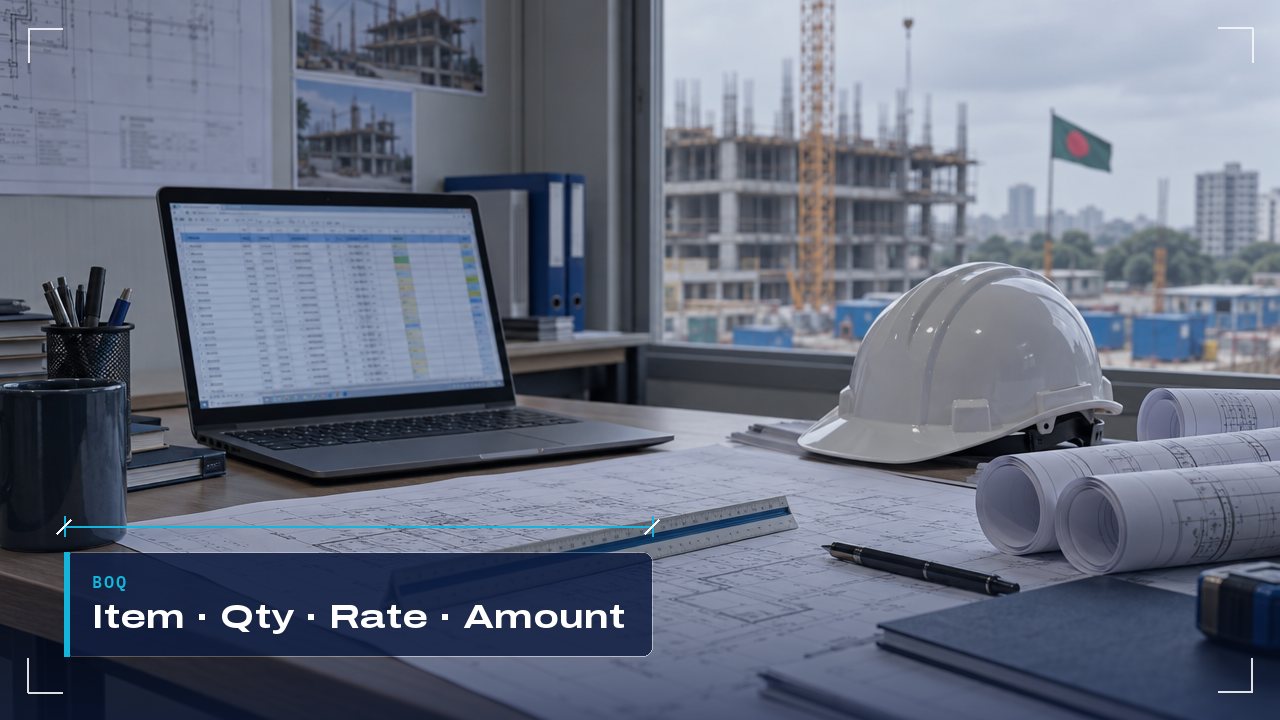
A bill of quantities (BOQ) is the document every construction budget, tender and payment in Bangladesh is built on. Most are still typed cell by cell into Excel, where a quantity is copied into three sheets and corrected in two.
Estimatrix keeps the job in one linked workbook, so a quantity or a rate is entered once. This guide goes through a complete BOQ, from a blank project to the file you send.
What to have ready
- The drawings, with their numbers and revision. You will be asked for them on the cover.
- The district of the site. It decides the PWD zone and the labour rate.
- The unit the drawings are dimensioned in, metres or feet.
- Whether you are preparing an official estimate or a contractor's tender quote.
From a blank project to a BOQ
The district sets the PWD zone and the labour rate.
1. Start a new project
Open Create a BOQ from the homepage or the menu. You do not need an account to start, but read the note on guest mode below.
The set-up dialog asks for:
- Project information: name, reference number, client, location and the district. Choosing a district sets the PWD zone (A, B, C or D) and the district labour rate in one step.
- Structure and units: new construction, retrofit or renovation; RCC, steel or hybrid; and the unit system, metric (m, sqm, cum) or imperial (rft, sft, cft). You can switch later without losing accuracy; see switching units mid-project.
- Budget breakdown: one consolidated budget, floor-wise or phase-wise.
- Taxes and margins: VAT, AIT, profit and overhead are pre-filled with the standard percentages. Keep them or change them; they can be edited at any time.
Instead of a blank BOQ you can start from a verified Prime Base Engineering project template: a PEB warehouse, an RMG retrofitting package or an industrial utility building.
2. Add items
Inside the workbook, use + SoR item to search the PWD Schedule of Rates. Type words ("40 MPa column", "plaster 1:4") or an item number ("07.5.1"). Every SoR item arrives with:
- the published rate for your zone, converted to your unit system;
- a generated rate analysis (materials, labour, equipment) priced at PWD basic rates, with today's market prices alongside;
- a measurement sheet ready for take-off.
Use + Custom for items that are not in the schedule; they come with their own rate analysis template. Use + Library for items you saved from earlier projects.
After each addition, Estimatrix suggests the next logical item from the usual construction sequence, for example sand filling in foundation trenches after earthwork in excavation. Accept it with one click or dismiss it. The usual order of a whole bill is in the order of items in a building BOQ.
3. Measure
Click an item's quantity to open its measurement sheet. Type Nos × Length × Breadth × Height row by row:
- press Enter to move Description → Nos → Length → Breadth → Height → new row;
- type formulas such as =12.5+15+8.25; the cell keeps the formula for checking later;
- add deduction rows for openings;
- rebar and structural steel items switch to their own take-off layouts.
A small example: six footings of 1.5 m × 1.5 m × 0.45 m are one row, Nos 6, Length 1.5, Breadth 1.5, Height 0.45, and the item quantity becomes 6.08 cum. The measurement sheet guide covers every option.
4. Check rates and the analysis
The Rate analysis sheet shows the breakdown behind every item. Compare PWD rates with market rates using PWD vs Market, try a different rebar brand or cement with the Material Swapper, and check the cost per SFT figure in the toolbar against the usual range.
5. Issue the BOQ
Use Export for:
- the full engineering Workbook (Excel with live formulas, or A4 PDF);
- a Client BOQ without rate analyses or PWD codes;
- a Blank Quotation for subcontractors;
- an e-GP schedule with unit rates in English and Bengali words.
Add your company letterhead, the revision and the Prepared / Checked / Approved block from File → Letterhead & sign-off. See exporting your BOQ.
Guest mode: save your work
Without an account, your BOQ is stored only temporarily in your browser. Clearing the cache or cookies erases it. Create a free account and everything you did as a guest moves into it and is backed up.
Mistakes we see often
- Choosing the wrong district, so every rate is from another zone.
- Measuring in feet in a metric project, or the reverse. Type the unit in the cell (12'-6") or switch the project.
- Adding items in the order they come to mind instead of the order of construction, which is how items go missing.
- Sending the full workbook, with its rate analyses, to a client who should receive the Client BOQ.
A first BOQ, worked from start to finish
A boundary wall is a good first project, because it has every stage of a larger one. Take a wall 30 m long and 1.8 m high above ground, 250 mm thick, on a brick foundation 375 mm thick and 0.6 m deep, in a trench 0.6 m wide and 0.75 m deep.
| Item | Measurement | Quantity |
|---|---|---|
| Earthwork in excavation | 30 × 0.6 × 0.75 | 13.50 cum |
| Sand filling, 75 mm | 30 × 0.6 × 0.075 | 1.35 cum |
| Brick flat soling | 30 × 0.6 | 18.00 sqm |
| Lean concrete 1:3:6, 75 mm | 30 × 0.6 × 0.075 | 1.35 cum |
| Brickwork in foundation | 30 × 0.375 × 0.6 | 6.75 cum |
| Brickwork in superstructure | 30 × 0.25 × 1.8 | 13.50 cum |
| Plaster, both faces | 2 × 30 × 1.8 | 108.00 sqm |
Seven items, seven rows of measurement. Each item is found with + SoR item, each row is typed once, and the rate, the amount and the materials follow. The damp-proof course, the coping, the back-filling and the painting would be the next four lines. Try to list them before you read on: that habit is what keeps items from going missing.
The sheets of the workbook
| Sheet | What it holds |
|---|---|
| Project overview | The project details, the summary and the total |
| BOQ summary | Every item with its quantity, rate and amount, grouped by section |
| Measurement & BBS | The rows behind each quantity, and the bar bending schedule |
| Rate analysis | Materials, labour and equipment behind each rate |
| Material requisition | Cement, sand, stone, bricks and rod added up over the whole project |
A floor-wise or phase-wise project has a budget sheet as well. You never copy a figure from one sheet to another. They are views of the same project.
When an item is already in the bill
Each SoR item appears once in a project. If you search for an item that is already there, its Add button changes to Exists at SL with the serial number, and pressing it takes you to that row. Add your new measurement rows under the existing item. Two lines for the same work in one bill are a common cause of double payment.
Where the same work really must appear twice, for example in two sections, use the duplicate button on the BOQ row. It copies the item with its rate analysis and its bars.
Keep versions as you go
Open File → Revision history and use Save revision before every issue: "Rev 0, issued for tender", "Rev 1, after the client's comments". Estimatrix also keeps an automatic history while you work. Any saved revision can be compared with the workbook as it is now: the comparison lists the items that were changed, added or omitted, with the difference in quantity and in money. That list is the starting point of a variation order.
File → Make a copy gives you a second project to try an alternative in, such as steel in place of concrete, without touching the first.
Questions people ask
Must the drawings be finished before I start? No. Start with what is drawn and save a revision. Quantities change by editing the rows, and nothing has to be typed again.
Can I change an official estimate into a tender quote later? Yes. The Format menu has Official estimate (PWD SoR basis) and Contractor tender quote. The items and quantities stay; only the summary is worked out differently. See VAT, AIT, profit and overhead.
What if I chose the wrong district? Open Tools → Zone & district rates and correct it. The rates follow the zone.
Can I add an item that is not in the schedule? Yes, with Insert → Custom item (with rate analysis). Its rate comes from the analysis you write.
Next steps
#boq#getting started#pwd sor
Related articles
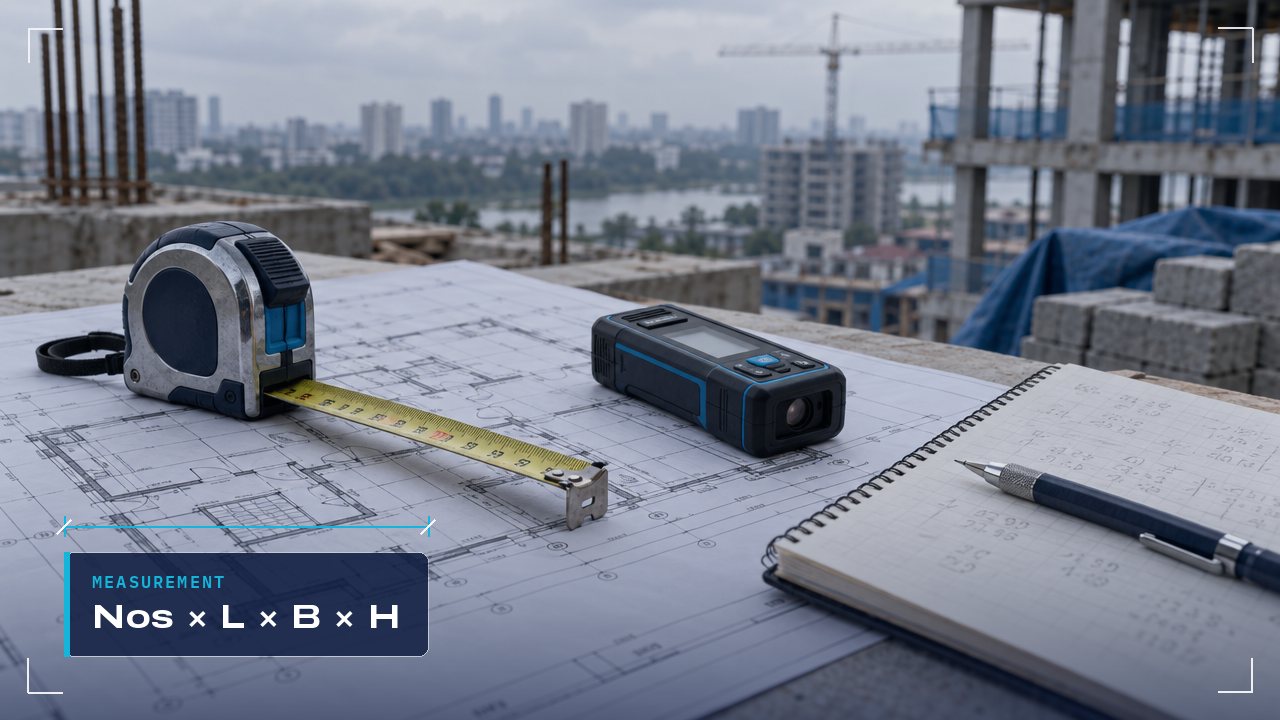
Measurement sheets: Enter-key entry, formulas, deductions and extra columns
Fast keyboard take-off in Estimatrix: Enter-key navigation, formulas inside cells, columns that follow the unit, deductions, multiplier columns and a worked example.
29 Oct 2026 · 7 min readRead
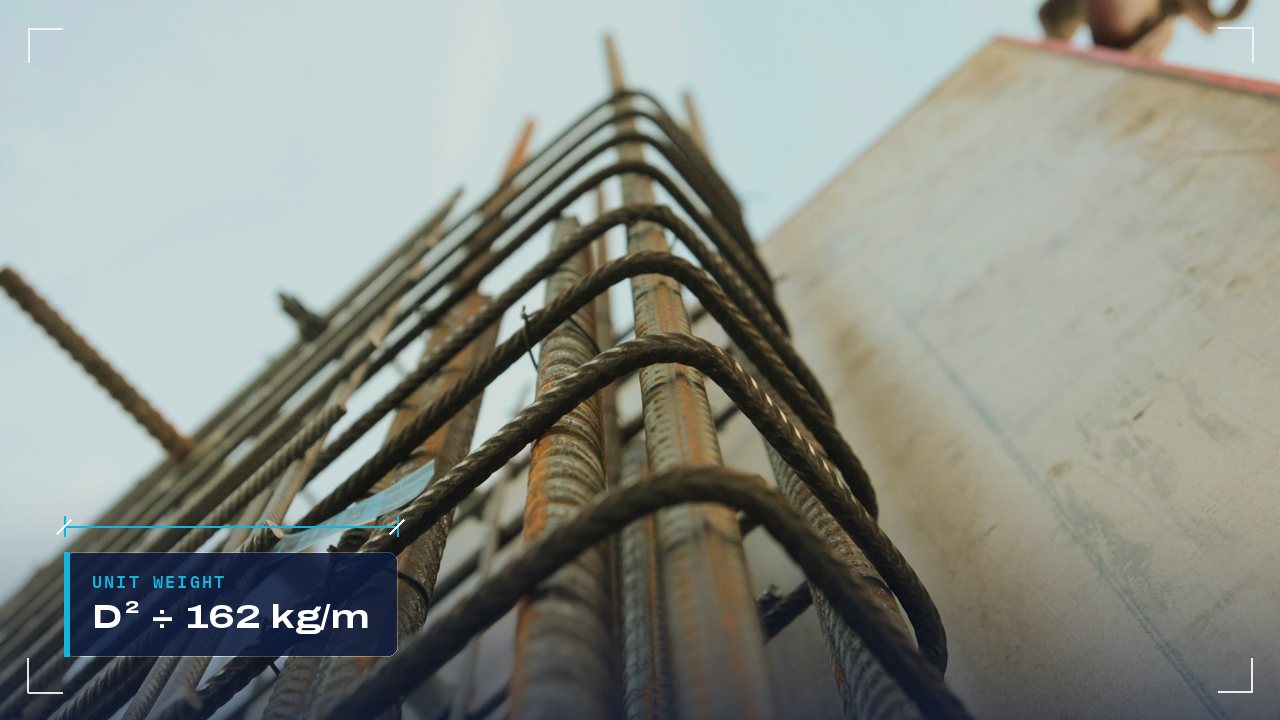
Rebar take-off in Estimatrix: bar sizes, unit weights and lapping allowance
Reinforcement items open in their own take-off: bars × diameter × length gives kilograms, with the unit weight shown, a lapping and wastage percentage and a summary by diameter.
28 Oct 2026 · 6 min readRead

Rate analysis on the PWD Schedule of Rates: how Estimatrix builds it
Every SoR item arrives with a rate analysis: material quantities from the specification, PWD basic rates for your zone, market prices alongside and a balancing line that keeps the published rate.
26 Oct 2026 · 6 min readRead